

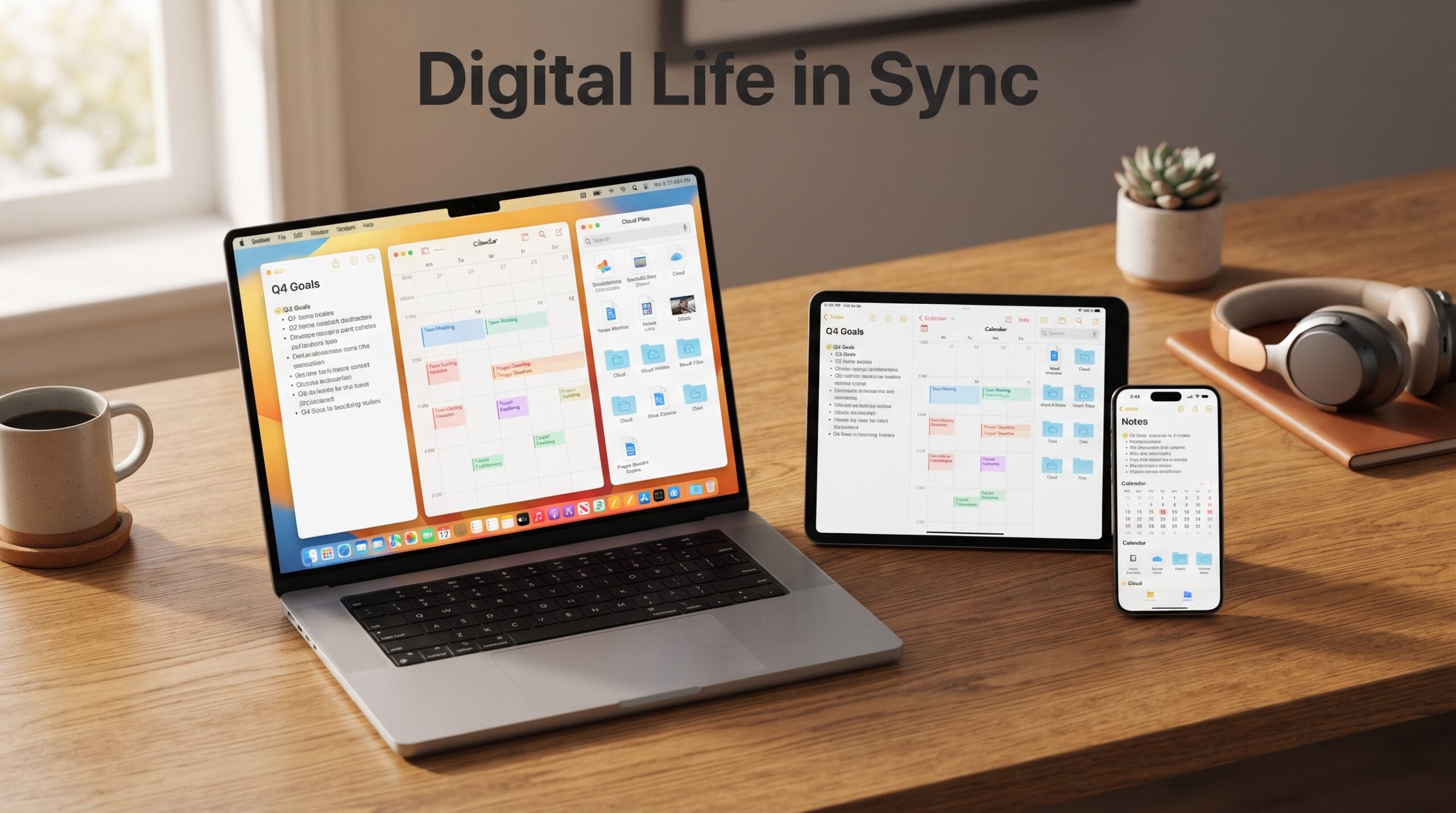
You snap a photo of a receipt on your phone, then need it on your laptop an hour later. A friend shares a playlist on your tablet, but your car stereo only recognizes the copy saved elsewhere. Moments like these add up, and each one chips away at the convenience our gadgets promised.
The fix is not buying more hardware. It is configuring the services you already own so that files, passwords, and plans follow you from one gadget to the next without extra effort. With a bit of setup, the whole system starts working quietly in the background.
Pick One Home Base for Your Ecosystem
Most syncing headaches start when data is scattered across too many accounts. Photos live in one cloud, documents in another, and contacts in a third, so nothing ever matches.
Choosing a single primary ecosystem, such as Apple, Google, or Microsoft, gives every device the same source of truth. It also makes troubleshooting far simpler, because there is only one place to look when something goes missing.
That does not mean you must own matching hardware. Google’s services run smoothly on iPhones, Microsoft offers its tools on Android, and iCloud has a Windows app.
What matters is deciding where the master copy of your information lives, then pointing every device toward it.
Files and Photos Everywhere
Cloud storage is the backbone of a synced life. Once a folder is linked, a document saved on your desktop appears on your phone moments later, ready to edit or share. The free tiers are a sensible starting point before you decide whether a paid plan is worth it.
| Service | Free Storage | Works Best With |
| Google Drive | 15 GB shared with Gmail and Photos | Android and Chromebooks |
| iCloud Drive | 5 GB | iPhone, iPad, and Mac |
| OneDrive | 5 GB | Windows and Microsoft 365 |
| Dropbox | 2 GB | Mixed setups across brands |
Keep in mind that syncing is not the same as backing up. Deleting a file on one device usually removes it everywhere, so a separate archive copy or the service’s version history remains essential for anything you cannot afford to lose.
Passwords and Logins That Follow You
Few things break the flow of a busy day like being locked out of an account on a new device. Fortunately, credentials have become some of the easiest data to synchronize.
Thanks to encrypted vaults and new sign-in standards, moving to a fresh device can now take minutes instead of an afternoon.
Let a Password Manager Do the Remembering
Built-in tools such as Apple’s Keychain and Google’s credential manager, along with independent apps like Bitwarden or 1Password, store logins in an encrypted vault.
Update one on your laptop, and the change reaches your phone automatically. Most of these managers also flag weak or reused entries, which makes tightening security far less tedious.
Switching screens mid-evening is common for casino fans too. Someone who starts browsing new slot releases on a laptop and later moves to the couch can open the hitnspin casino login page on a phone and let the manager fill in the saved details with one tap. The same convenience applies to banking, shopping, and streaming accounts alike.
Passkeys and Two-Step Codes on Every Device
Passkeys swap typed secrets for a fingerprint, face scan, or device PIN, and they sync through the same vaults. Create one on your phone, and your tablet can use it as well. Because there is nothing to type, there is also nothing for a phishing page to steal.
Code-generating apps used to be tied to a single handset, which made upgrades stressful. Google Authenticator added cloud sync in 2023, and Microsoft’s equivalent offers a backup option, so a lost or replaced phone no longer means rebuilding every account from scratch.
Calendars, Notes, and Messages
Plans fall apart quickly when your phone and laptop disagree about where you need to be. Linking every scheduling app to the same account solves this, and modern versions even shift appointments automatically when you cross time zones.
Your to-do lists deserve the same treatment. Note-taking tools such as Google Keep, Microsoft OneNote, and Notion keep grocery reminders and project ideas identical on every screen.
Messaging has caught up as well, since most major chat services now let you link a computer or tablet to the same account and continue conversations wherever you are.
A Weekly Routine That Keeps Everything Aligned
Even the smartest setup drifts over time. Old devices linger in account lists, apps lose permissions, and storage fills up. Spending five minutes on these checks each week keeps everything running smoothly:
- Confirm that cloud uploads finished on every phone and computer;
- Remove devices you no longer use from your main accounts;
- Clear duplicates from photo libraries and download folders;
- Check that browser bookmarks and open tabs match across devices;
- Review storage usage before it reaches the limit.
Once this routine settles in, switching between devices stops feeling like a juggling act. Your information simply waits for you, ready on whichever screen happens to be closest, and setting up a new gadget becomes a pleasure instead of a project.
