


wp:paragraph
Let’s talk about a graphics setting that can sharpen your visuals like a well-placed Operator shot—Anisotropic Filtering.
/wp:paragraph
wp:paragraph
If you’ve noticed certain surfaces looking muddy or unclear from specific angles, this setting might be the fix you need.
/wp:paragraph
wp:paragraph
Whether you’re aiming for a smoother look or simply want to boost detail in-game, Anisotropic Filtering (AF) can play a big role in how Valorant appears on your screen.
/wp:paragraph
wp:image {“id”:25602,”width”:”652px”,”height”:”auto”,”sizeSlug”:”full”,”linkDestination”:”none”,”align”:”center”}

/wp:image
wp:heading
What Is Anisotropic Filtering in Valorant?
/wp:heading
wp:paragraph
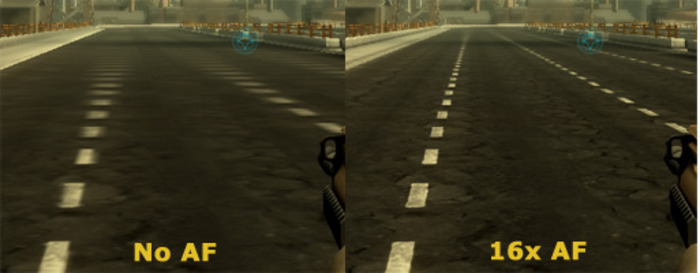
Anisotropic Filtering improves how textures appear, especially when they’re viewed from an angle rather than head-on.
/wp:paragraph
wp:paragraph
Instead of textures turning blurry as you move through the map, AF helps keep them sharp and detailed—even when viewed across long distances or from a side angle.
/wp:paragraph
wp:paragraph
Main benefits of AF:
/wp:paragraph
wp:list
- wp:list-item
- Enhances clarity of angled textures
/wp:list-item
/wp:list
wp:paragraph
/wp:paragraph
wp:list
- wp:list-item
- Minimizes blurring and smudging
/wp:list-item
/wp:list
wp:paragraph
/wp:paragraph
wp:list
- wp:list-item
- Most noticeable on floors, walls, and ground surfaces
/wp:list-item
/wp:list
wp:paragraph
/wp:paragraph
wp:list
- wp:list-item
- Adjustable setting that allows you to choose between better visuals or improved performance
/wp:list-item
/wp:list
wp:heading
How Anisotropic Filtering Works?
/wp:heading
wp:paragraph
AF increases the number of texture samples based on the viewing angle. It focuses on areas where standard filtering would usually cut corners.
/wp:paragraph
wp:paragraph
Without AF: Fewer texture samples are used, leading to blurrier surfaces when viewed from the side.
With AF:
/wp:paragraph
wp:list
- wp:list-item
- More texture data is collected
/wp:list-item
/wp:list
wp:paragraph
/wp:paragraph
wp:list
- wp:list-item
- Sampling aligns with your viewpoint
/wp:list-item
/wp:list
wp:paragraph
/wp:paragraph
wp:list
- wp:list-item
- The result is a clearer image without distortion
/wp:list-item
/wp:list
wp:paragraph
Levels of AF:
/wp:paragraph
wp:paragraph
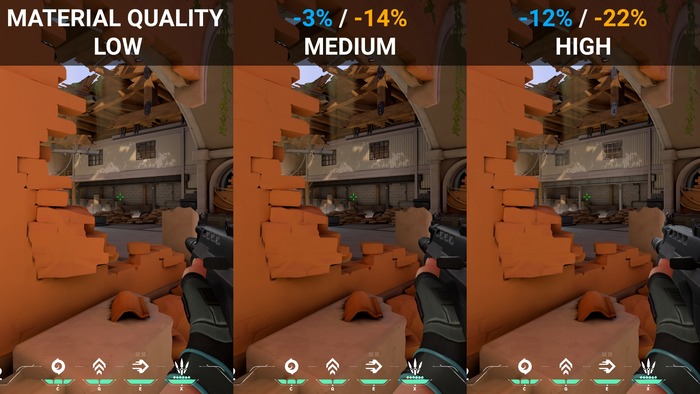
AF settings typically include 2x, 4x, 8x, and 16x. Higher levels provide better clarity but may require more processing power from your GPU.
/wp:paragraph
wp:image {“id”:25601,”width”:”674px”,”height”:”auto”,”sizeSlug”:”full”,”linkDestination”:”none”,”align”:”center”}
/wp:image
wp:heading
Performance Considerations
/wp:heading
wp:paragraph
Modern GPUs are quite efficient at handling AF. For most systems, enabling higher levels of AF won’t cause a noticeable drop in performance.
/wp:paragraph
wp:paragraph
Many players find that the improvement in texture quality is worth the small cost in frame rate.
/wp:paragraph
wp:heading
How to Adjust Anisotropic Filtering in Valorant?
/wp:heading
wp:paragraph
You can change AF settings easily through the game’s menu:
/wp:paragraph
wp:list {“ordered”:true}
- wp:list-item
- Open Valorant
- Click the gear icon in the top-right corner
- Go to the “Graphics Quality” tab
- Scroll to find “Anisotropic Filtering”
- Use the dropdown menu to select from: wp:list
- wp:list-item
- Off
- 1x
- 2x
- 4x
- 8x
- 16x
/wp:list-item
wp:list-item/wp:list-item
wp:list-item/wp:list-item
wp:list-item/wp:list-item
wp:list-item/wp:list-item
wp:list-item/wp:list-item
/wp:list
- Apply changes and restart the game if necessary
/wp:list-item
wp:list-item
/wp:list-item
wp:list-item
/wp:list-item
wp:list-item
/wp:list-item
wp:list-item
/wp:list-item
wp:list-item
/wp:list-item
/wp:list
wp:heading
Choosing the Right AF Level
/wp:heading
wp:list
- wp:list-item
- 4x or 8x – A great balance of quality and performance
/wp:list-item
/wp:list
wp:paragraph
/wp:paragraph
wp:list
- wp:list-item
- 16x – Best visual results if your system can handle it
/wp:list-item
/wp:list
wp:paragraph
/wp:paragraph
wp:list
- wp:list-item
- 2x – Still offers a visible upgrade from lower settings on less powerful hardware
/wp:list-item
/wp:list
wp:paragraph
/wp:paragraph
wp:list
- wp:list-item
- Use the shooting range to test settings without affecting competitive play
/wp:list-item
/wp:list
wp:image {“id”:25600,”width”:”666px”,”height”:”auto”,”sizeSlug”:”full”,”linkDestination”:”none”,”align”:”center”}

/wp:image
wp:heading
Related Graphics Terms
/wp:heading
wp:paragraph
Here are a few terms connected to Anisotropic Filtering:
/wp:paragraph
wp:list
- wp:list-item
- Texture Filtering – How games process and display texture images
/wp:list-item
/wp:list
wp:paragraph
/wp:paragraph
wp:list
- wp:list-item
- Mipmapping – A technique used to optimize textures depending on distance
/wp:list-item
/wp:list
wp:paragraph
/wp:paragraph
wp:list
- wp:list-item
- Bilinear Filtering – A basic filtering method improved by AF
- Anti-Aliasing – Reduces jagged edges in visuals
/wp:list-item
wp:list-item
/wp:list-item
/wp:list
wp:paragraph
/wp:paragraph
wp:list
- wp:list-item
- Render Resolution – The size of the image being rendered, which can influence clarity
/wp:list-item
/wp:list
wp:paragraph
/wp:paragraph
wp:list
- wp:list-item
- GPU Load – The amount of work your graphics card is doing
/wp:list-item
/wp:list
wp:heading
Final Thoughts
/wp:heading
wp:paragraph
Anisotropic Filtering helps Valorant look sharper and more defined, especially during fast-paced gameplay.
/wp:paragraph
wp:paragraph
Try different settings to see which one fits your system best. Once adjusted, you might notice distant details more clearly—giving you a visual edge when it matters most.
/wp:paragraph
wp:paragraph
Now go fine-tune your visuals, and may your textures be as crisp as your flick shots.
/wp:paragraph

