Secure Boot in Valorant: What It Is and How to Enable It?
wp:paragraph
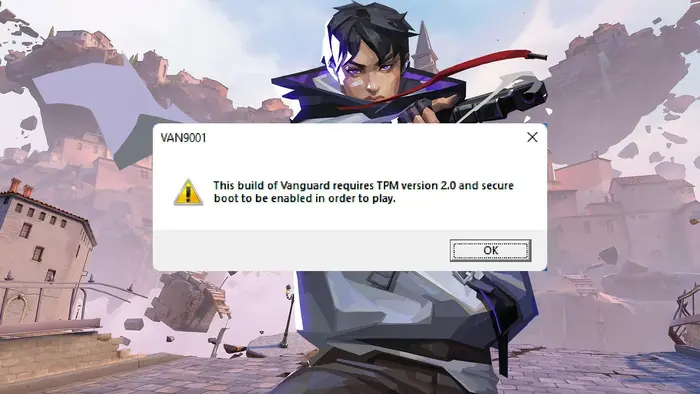
If you’ve ever tried launching Valorant and were met with system prompts or errors related to security settings, you’re not alone.
/wp:paragraph
wp:paragraph
Riot Games has taken several steps to keep matches fair and protected from cheats, and one of the key components in that effort is something called Secure Boot.
/wp:paragraph
wp:paragraph
Here’s what it does and how to make sure it’s set up correctly.
/wp:paragraph
wp:image {“id”:25535,”width”:”688px”,”height”:”auto”,”sizeSlug”:”full”,”linkDestination”:”none”,”align”:”center”}

/wp:image
wp:heading
What Is Secure Boot in Valorant?
/wp:heading
wp:paragraph
Secure Boot is a security protocol built into your computer’s UEFI firmware (the modern replacement for BIOS).
/wp:paragraph
wp:paragraph
Its purpose is to make sure your system only loads verified and trusted software when it powers on.
/wp:paragraph
wp:paragraph
In the case of Valorant, Secure Boot works hand-in-hand with Vanguard, Riot’s anti-cheat software.
/wp:paragraph
wp:paragraph
Together, they help block unauthorized programs, like cheats or malicious software, from sneaking into your system before the operating system fully loads.
/wp:paragraph
wp:paragraph
Secure Boot essentially acts as a gatekeeper, ensuring the entire startup process remains trustworthy.
/wp:paragraph
wp:heading
Why Is Secure Boot Required for Valorant?
/wp:heading
wp:paragraph
Riot enforces Secure Boot for multiple reasons:
/wp:paragraph
wp:list
- wp:list-item
- Stronger Cheat Protection – Prevents deep-rooted hacks from interfering with the game.
/wp:list-item
/wp:list
wp:paragraph
/wp:paragraph
wp:list
- wp:list-item
- Maintains Competitive Fairness – Helps ensure everyone plays under the same rules.
/wp:list-item
/wp:list
wp:paragraph
/wp:paragraph
wp:list
- wp:list-item
- Improves Vanguard’s Functionality – Allows Vanguard to run in a secure environment, increasing its effectiveness.
/wp:list-item
/wp:list
wp:paragraph
/wp:paragraph
wp:list
- wp:list-item
- Enhances PC Security – Shields your system from certain types of malware and unauthorized software.
/wp:list-item
/wp:list
wp:paragraph
/wp:paragraph
wp:list
- wp:list-item
- Supports Ranked Integrity – Keeps the experience clean, especially in competitive and tournament settings.
/wp:list-item
/wp:list
wp:image {“id”:25536,”width”:”672px”,”height”:”auto”,”sizeSlug”:”full”,”linkDestination”:”none”,”align”:”center”}
/wp:image
wp:heading
How to Turn On Secure Boot and TPM?
/wp:heading
wp:paragraph
Setting up Secure Boot and TPM (Trusted Platform Module) isn’t too complicated, but it does require accessing your system’s BIOS/UEFI. Here’s a step-by-step guide:
/wp:paragraph
wp:list {“ordered”:true}
- wp:list-item
- Restart Your PC and Open BIOS/UEFI
wp:list- wp:list-item
- Press the designated key during boot (often F2, Del, or F12 depending on your motherboard manufacturer).
/wp:list-item
/wp:list
- Enable Secure Boot
wp:list- wp:list-item
- Look for the Secure Boot setting, usually under “Security” or “Boot” options.
- Switch it from “Disabled” to “Enabled.”
/wp:list-item
wp:list-item/wp:list-item
/wp:list
- Enable TPM (if not already enabled)
wp:list- wp:list-item
- Locate TPM or PTT settings (sometimes under “Advanced” or “Security”).
- Make sure TPM 2.0 is turned on.
/wp:list-item
wp:list-item/wp:list-item
/wp:list
- Save and Exit
wp:list- wp:list-item
- Save your changes and exit BIOS. Your PC will restart.
/wp:list-item
/wp:list
- Confirm in Windows
wp:list- wp:list-item
- Press Win+R, type msinfo32, and press Enter.
- Look for “Secure Boot State” to verify it says “On.”
/wp:list-item
wp:list-item/wp:list-item
/wp:list
- Check TPM
wp:list- wp:list-item
- Press Win+R, type tpm.msc, and press Enter.
- The TPM Management window should show that TPM is ready for use.
/wp:list-item
wp:list-item/wp:list-item
/wp:list
/wp:list-item
wp:list-item
/wp:list-item
wp:list-item
/wp:list-item
wp:list-item
/wp:list-item
wp:list-item
/wp:list-item
wp:list-item
/wp:list-item
/wp:list
wp:image {“id”:25534,”width”:”650px”,”height”:”auto”,”sizeSlug”:”full”,”linkDestination”:”none”,”align”:”center”}

/wp:image
wp:heading
Other Terms You May Come Across
/wp:heading
wp:paragraph
When dealing with Secure Boot and Valorant, you might also hear about:
/wp:paragraph
wp:list
- wp:list-item
- Vanguard – Valorant’s anti-cheat software
/wp:list-item
/wp:list
wp:paragraph
/wp:paragraph
wp:list
- wp:list-item
- TPM (Trusted Platform Module) – A hardware-based security feature
/wp:list-item
/wp:list
wp:paragraph
/wp:paragraph
wp:list
- wp:list-item
- UEFI – The firmware interface that replaced BIOS
/wp:list-item
/wp:list
wp:paragraph
/wp:paragraph
wp:list
- wp:list-item
- Kernel-level Driver – A type of software that runs with high system privileges
/wp:list-item
/wp:list
wp:paragraph
/wp:paragraph
wp:list
- wp:list-item
- Anti-cheat – Tools used to prevent unfair gameplay advantages
/wp:list-item
/wp:list
wp:paragraph
With Secure Boot enabled, you’re taking an important step toward ensuring your system is protected and that Valorant runs the way it was intended.
/wp:paragraph
wp:paragraph
These requirements may seem technical, but they’re designed to provide a secure and fair environment for every player.
/wp:paragraph
wp:paragraph
So, once everything’s set up, you’re all set to queue up and enjoy smooth, honest matches.
/wp:paragraph