

wp:paragraph
The EMP.dll file is a crucial Dynamic Link Library (DLL) component required for the proper functioning of Hogwarts Legacy.
/wp:paragraph
wp:paragraph
DLL files store shared code, data, and resources that multiple applications and games depend on to operate efficiently.
/wp:paragraph
wp:paragraph
When EMP.dll is missing or corrupted, players may encounter errors that prevent the game from launching or cause sudden crashes during gameplay.
/wp:paragraph
wp:paragraph
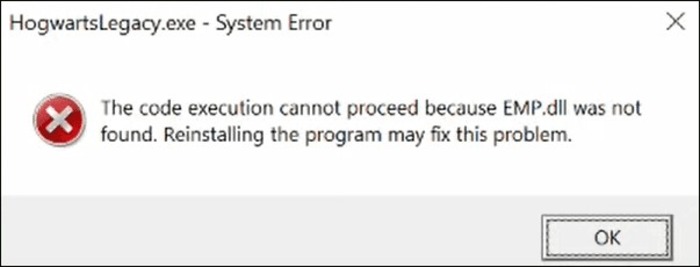
The “EMP.dll not found” error often appears when attempting to start Hogwarts Legacy, leading to disruptions that significantly impact the overall experience.
/wp:paragraph
wp:paragraph
Because this file is essential to the game’s stability and performance, any issues related to it must be resolved to ensure smooth gameplay.
/wp:paragraph
wp:paragraph
Fortunately, there are multiple solutions available to fix this problem. Below, we explore various methods to restore the EMP.dll file and get Hogwarts Legacy running without errors.
/wp:paragraph
wp:image {“id”:24814,”width”:”672px”,”height”:”auto”,”sizeSlug”:”full”,”linkDestination”:”none”,”align”:”center”}
/wp:image
wp:heading
Solutions to Fix the EMP.dll Not Found Error
/wp:heading
wp:heading {“level”:3}
1. Reinstall Hogwarts Legacy
/wp:heading
wp:paragraph
If EMP.dll is missing or corrupted, reinstalling the game ensures that all necessary files, including DLL components, are properly installed.
/wp:paragraph
wp:paragraph
This method often resolves errors by replacing damaged or missing files.
/wp:paragraph
wp:heading {“level”:4}
Steps to Reinstall the Game:
/wp:heading
wp:list {“ordered”:true}
- wp:list-item
- Open the Control Panel and navigate to Programs > Uninstall a Program.
- Locate Hogwarts Legacy, right-click on it, and select Uninstall.
- Visit the official game website or your game provider’s platform (e.g., Steam, Epic Games) to download the latest version of the game.
- Follow the on-screen instructions to install the game.
- Restart your computer and launch Hogwarts Legacy to check if the error persists.
/wp:list-item
wp:list-item
/wp:list-item
wp:list-item
/wp:list-item
wp:list-item
/wp:list-item
wp:list-item
/wp:list-item
/wp:list
wp:heading {“level”:3}
2. Update Graphics Drivers
/wp:heading
wp:paragraph
Outdated or faulty graphics drivers can lead to DLL errors, including those involving EMP.dll.
/wp:paragraph
wp:paragraph
Updating your drivers can improve game compatibility and performance.
/wp:paragraph
wp:heading {“level”:4}
Steps to Update Graphics Drivers:
/wp:heading
wp:list {“ordered”:true}
- wp:list-item
- Press Win + R, type dxdiag, and press Enter to open the DirectX Diagnostic Tool.
- Click on the Display tab to find details about your graphics card.
- Visit the official website of your graphics card manufacturer (Nvidia, AMD, or Intel).
- Enter your GPU model and download the latest driver version.
- Run the installer and follow the instructions to update your drivers.
- Restart your computer and check if Hogwarts Legacy runs without issues.
/wp:list-item
wp:list-item
/wp:list-item
wp:list-item
/wp:list-item
wp:list-item
/wp:list-item
wp:list-item
/wp:list-item
wp:list-item
/wp:list-item
/wp:list
wp:paragraph
3. Run System File Checker (SFC) Scan
/wp:paragraph
wp:paragraph
The System File Checker (SFC) tool scans the system for corrupted or missing files, including DLL components, and automatically repairs them.
/wp:paragraph
wp:heading {“level”:4}
Steps to Run an SFC Scan:
/wp:heading
wp:list {“ordered”:true}
- wp:list-item
- Type cmd in the Windows search bar, right-click Command Prompt, and select Run as Administrator.
/wp:list-item
/wp:list
wp:paragraph
In the command prompt, type the following command and press Enter:
sfc /scannow
/wp:paragraph
wp:list {“ordered”:true,”start”:2}
- wp:list-item
- Wait for the scan to complete. If any corrupted system files are found, the tool will automatically repair them.
- Restart your computer and verify if the error has been fixed.
/wp:list-item
wp:list-item
/wp:list-item
/wp:list
wp:heading {“level”:3}
4. Re-register the EMP.dll File
/wp:heading
wp:paragraph
If EMP.dll is not properly registered, the system may fail to recognize it. Re-registering the file can resolve related errors.
/wp:paragraph
wp:heading {“level”:4}
Steps to Re-register EMP.dll:
/wp:heading
wp:list {“ordered”:true}
- wp:list-item
- Press Win + X and select Command Prompt (Admin).
/wp:list-item
/wp:list
wp:paragraph
Unregister the DLL file by typing the following command and pressing Enter:
regsvr32 /u EMP.dll
/wp:paragraph
wp:list {“ordered”:true,”start”:2}
- wp:list-item
- Re-register the file using this command:
regsvr32 EMP.dll - Restart your computer and launch the game to check if the issue is resolved.
/wp:list-item
wp:list-item
/wp:list-item
/wp:list
wp:heading {“level”:3}
5. Use a DLL Repair Tool
/wp:heading
wp:paragraph
DLL fixer tools can automatically detect and repair missing or damaged DLL files, including EMP.dll, restoring them with minimal manual effort.
/wp:paragraph
wp:heading {“level”:4}
Steps to Use a DLL Repair Tool:
/wp:heading
wp:list {“ordered”:true}
- wp:list-item
- Download a reliable DLL repair tool from a trusted source, such as DLL-Files.com.
- Install and open the software.
- Run a system scan to identify missing or corrupted DLL files.
- Select EMP.dll and follow the tool’s instructions to restore or replace it.
- Restart your computer and test if Hogwarts Legacy launches correctly.
/wp:list-item
wp:list-item
/wp:list-item
wp:list-item
/wp:list-item
wp:list-item
/wp:list-item
wp:list-item
/wp:list-item
/wp:list
wp:heading {“level”:3}
6. Perform a Clean Boot
/wp:heading
wp:paragraph
Running a clean boot allows Windows to start with only essential services, which helps identify whether a background application is causing the EMP.dll error.
/wp:paragraph
wp:heading {“level”:4}
Steps to Perform a Clean Boot:
/wp:heading
wp:list {“ordered”:true}
- wp:list-item
- Press Win + R, type msconfig, and press Enter.
- Navigate to the Services tab, check Hide all Microsoft services, and then click Disable all.
- Go to the Startup tab and click Open Task Manager.
- Disable all startup programs.
- Restart your computer and attempt to launch Hogwarts Legacy.
/wp:list-item
wp:list-item
/wp:list-item
wp:list-item
/wp:list-item
wp:list-item
/wp:list-item
wp:list-item
/wp:list-item
/wp:list
wp:heading {“level”:3}
7. Restore the System to an Earlier State
/wp:heading
wp:paragraph
If the EMP.dll error began after a recent system update or software installation, using System Restore can revert your system to a previous state where the game functioned properly.
/wp:paragraph
wp:heading {“level”:4}
Steps to Perform a System Restore:
/wp:heading
wp:list {“ordered”:true}
- wp:list-item
- Press Win + R, type rstrui, and press Enter.
- Follow the on-screen instructions to select a restore point that predates the EMP.dll issue.
- Allow Windows to complete the restoration process and restart your computer.
- Try launching Hogwarts Legacy to see if the error has been resolved.
/wp:list-item
wp:list-item
/wp:list-item
wp:list-item
/wp:list-item
wp:list-item
/wp:list-item
/wp:list
wp:image {“id”:24815,”width”:”668px”,”height”:”auto”,”sizeSlug”:”full”,”linkDestination”:”none”,”align”:”center”}
/wp:image
wp:heading
Recovering a Deleted EMP.dll File
/wp:heading
wp:paragraph
If EMP.dll was mistakenly deleted, recovery software can help restore it.
/wp:paragraph
wp:heading {“level”:3}
Steps to Recover EMP.dll Using a File Recovery Tool:
/wp:heading
wp:list {“ordered”:true}
- wp:list-item
- Download and install a reliable recovery tool, such as EaseUS Data Recovery Wizard.
- Open the software and select the drive where the file was deleted.
- Run a scan to locate missing files.
- Preview the scan results and restore EMP.dll to its original location.
- Restart your computer and check if the game functions properly.
/wp:list-item
wp:list-item
/wp:list-item
wp:list-item
/wp:list-item
wp:list-item
/wp:list-item
wp:list-item
/wp:list-item
/wp:list
wp:heading
Common Causes of EMP.dll Errors
/wp:heading
wp:paragraph
Several factors can lead to EMP.dll issues in Hogwarts Legacy, including:
/wp:paragraph
wp:list
- wp:list-item
- Corrupted Game Files: The DLL file may become corrupted due to incomplete installations, software conflicts, or failed updates.
/wp:list-item
/wp:list
wp:paragraph
/wp:paragraph
wp:list
- wp:list-item
- Accidental Deletion: The file may have been unintentionally removed or deleted by an antivirus program.
/wp:list-item
/wp:list
wp:paragraph
/wp:paragraph
wp:list
- wp:list-item
- Malware Infections: Viruses and other malicious software can modify or delete DLL files, causing system errors.
/wp:list-item
/wp:list
wp:paragraph
/wp:paragraph
wp:list
- wp:list-item
- Registry Issues: Incorrect registry entries related to EMP.dll may prevent Windows from locating the file.
/wp:list-item
/wp:list
wp:paragraph
/wp:paragraph
wp:list
- wp:list-item
- Outdated Drivers: Incompatible or outdated hardware drivers can result in DLL-related errors.
/wp:list-item
/wp:list
wp:paragraph
By identifying the root cause and applying the appropriate fix, players can prevent future issues and maintain smooth gameplay.
/wp:paragraph
wp:heading
FAQs
/wp:heading
wp:heading {“level”:3}
1. How can I fix the “EMP.dll not found” error?
/wp:heading
wp:paragraph
You can reinstall Hogwarts Legacy, check your Recycle Bin for the missing file, run a System File Checker scan, update your drivers, use System Restore, download the DLL from a trusted source, or use a DLL repair tool.
/wp:paragraph
wp:heading {“level”:3}
2. What should I do if a DLL file is missing?
/wp:heading
wp:paragraph
Try restoring it from the Recycle Bin, running an SFC scan, using System Restore, or downloading a replacement file from a reputable website.
/wp:paragraph
wp:heading {“level”:3}
3. Can these fixes apply to other games like Red Dead Redemption 2?
/wp:heading
wp:paragraph
Yes, similar solutions can be used for other games experiencing DLL errors. Reinstalling the game, updating drivers, running an SFC scan, or using a DLL repair tool may resolve the issue.
/wp:paragraph
wp:heading {“level”:3}
4. What causes DLL errors?
/wp:heading
wp:paragraph
DLL errors arise from file corruption, accidental deletion, malware infections, outdated drivers, or conflicts during software installation.
/wp:paragraph
wp:paragraph
Regular updates and proper system maintenance help minimize these problems.
/wp:paragraph
wp:paragraph
By following these troubleshooting methods, players can effectively fix EMP.dll errors and enjoy an uninterrupted gaming experience in Hogwarts Legacy.
/wp:paragraph
wp:paragraph
/wp:paragraph
