


You don’t need a $2,000 rig to enjoy great games. With the right tweaks, even aging hardware can punch well above its weight. Whether you’re running an old laptop or a budget desktop, these tips will help you squeeze every last frame out of what you’ve got — without spending a cent.
1. Lower In-Game Graphics Settings Intelligently

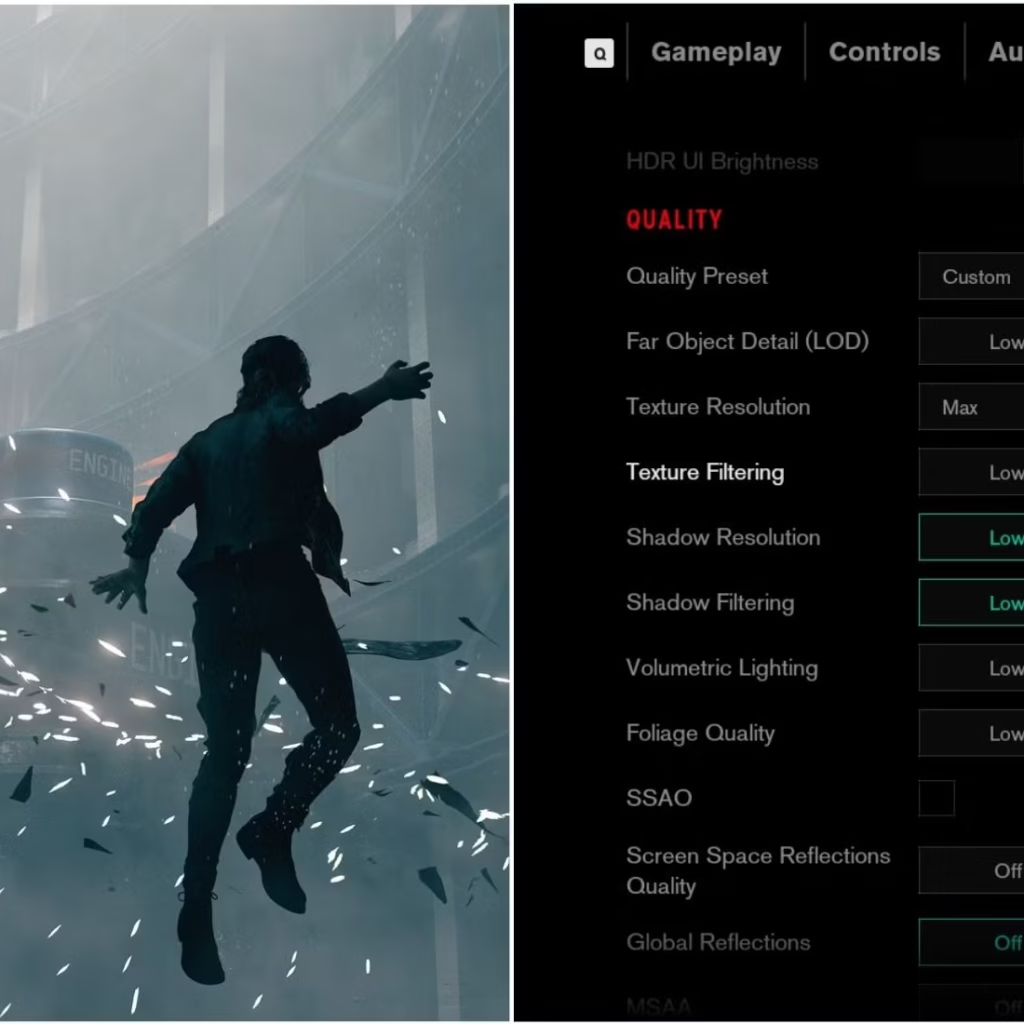
Not all graphics settings hit performance equally. Before dropping your resolution, target these heavy hitters first:
- Shadow quality — dropping from Ultra to Medium alone can boost FPS by 20–35%
- Anti-aliasing — switch from MSAA to FXAA, or disable it entirely
- Ambient occlusion, motion blur, and depth of field — disable these; they cost a lot and most players don’t notice them
- Draw distance and effects — reduce these progressively until you hit a stable frame rate
The goal isn’t the prettiest image — it’s a stable 30 or 60 FPS. Consistency beats raw visual quality every time.
2. Clean Up Startup Programs and Background Processes
Every app that launches at startup eats RAM and CPU before you even open a game. On a machine with 8GB or less, this matters enormously.
Open Task Manager (Ctrl + Shift + Esc), go to the Startup tab, and disable everything non-essential — browser helpers, cloud sync clients, music apps, and chat programs can all be opened manually when needed. Before launching a game, close unused browser tabs and applications. Each gigabyte of freed RAM can make a real difference.
3. Switch to a High Performance Power Plan
Windows defaults to a Balanced power plan that throttles your CPU to save energy. That’s great for battery life, terrible for gaming.
Go to Control Panel → Power Options and select High Performance. This ensures your processor runs at full speed during gameplay instead of constantly scaling back. On laptops especially, this single change can unlock noticeable frame rate gains.
4. Enable Game Mode and Disable Visual Effects
Windows Game Mode (Settings → Gaming → Game Mode) reallocates system resources toward your active game and suppresses background processes that compete for CPU time. Turn it on.
Next, search for “Adjust the appearance and performance of Windows” and select Adjust for best performance. This disables window animations, transparency, and other visual flourishes that quietly consume GPU cycles — especially impactful on systems using integrated graphics.
5. Keep GPU Drivers Updated and Configured

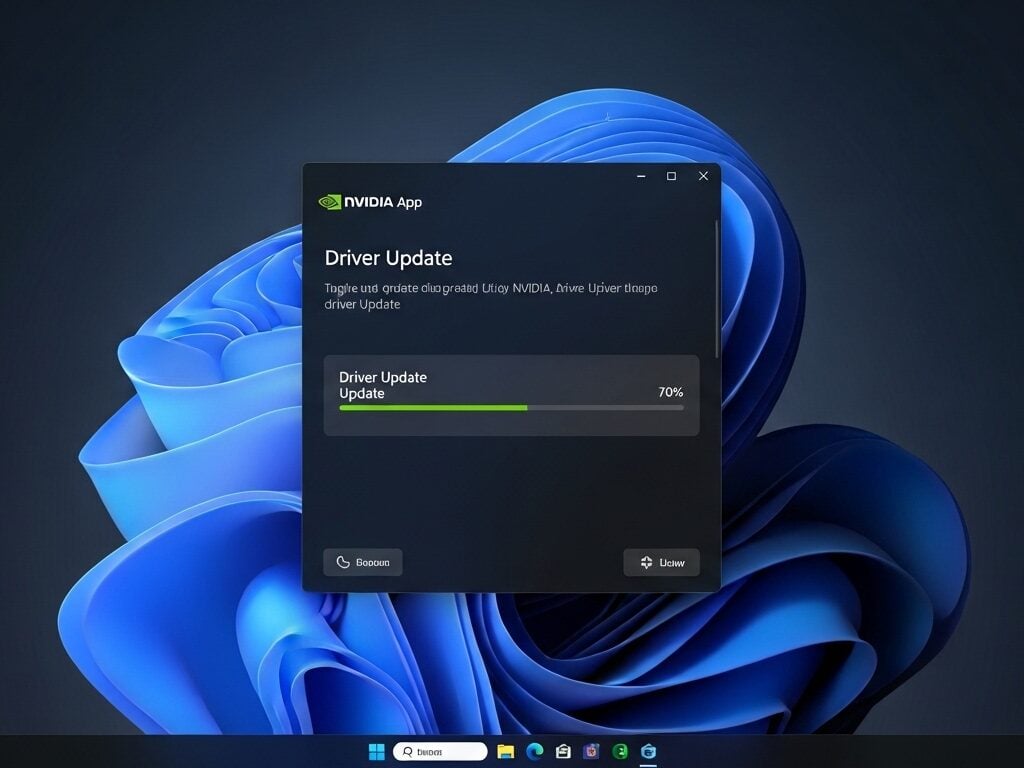
Outdated GPU drivers are one of the most overlooked causes of poor performance. Both NVIDIA (via GeForce Experience) and AMD (via Radeon Software) release regular updates with game-specific optimizations. Always keep these current.
Inside your GPU control panel, set power management to Prefer Maximum Performance. Also explore upscaling features — NVIDIA’s Image Scaling or AMD’s Radeon Super Resolution can improve perceived image quality even at lower render resolutions, a handy trick for low-end hardware.
6. Optimize Your Storage
Gaming on a fragmented hard drive introduces stuttering and long load times. Run Windows Defragmenter on spinning drives regularly. If you can manage even a budget SSD for your most-played games, the improvement in load times and mid-game stutter is dramatic — it’s one of the highest-impact, lowest-cost upgrades available.
Also check that your RAM is running in dual-channel mode (two matched sticks rather than one). This nearly doubles memory bandwidth and measurably improves frame rates in CPU-bound games.
7. Monitor Temperatures and Prevent Thermal Throttling
Thermal throttling is a silent FPS killer. When a CPU or GPU overheats, it clocks itself down automatically to avoid damage — and your frame rate crashes with it.
Clean dust from vents and fans every few months, ensure good airflow around your PC, and use a free tool like HWMonitor to track temperatures in real time. If your CPU regularly exceeds 90°C under gaming load, cooling is your most urgent problem — no settings tweak will compensate for a thermally throttled processor. On older laptops, reapplying dried-out thermal paste can drop temperatures by 15–20°C.
8. Use Lightweight Monitoring Tools
You can’t optimize what you can’t measure. MSI Afterburner with the RivaTuner overlay lets you track FPS, CPU load, GPU usage, and RAM consumption in real time during gameplay — without meaningfully impacting performance. Knowing which component is maxed out tells you exactly where to focus next.
For deeper dives into hardware tuning, driver configuration, and hands-on benchmarks built around budget setups, technected.com is a solid go-to resource. It publishes practical, jargon-free guides written specifically for gamers working with real-world hardware constraints.
Final Thought
A low-end PC optimized with these techniques will outperform an unoptimized mid-range machine in real-world gaming. Start with in-game settings, clear your startup programs, switch your power plan, and keep your drivers and system temperatures in check. The hardware you have is almost certainly more capable than you think — it just needs the right setup to prove it.

