


wp:paragraph
Roblox is one of the top online gaming platforms, drawing millions of players who engage with various user-created games daily.
/wp:paragraph
wp:paragraph
Yet, like any online service, it can experience technical difficulties that impact the gaming experience.
/wp:paragraph
wp:paragraph
Whether the issue involves the game failing to launch, problems with gift cards, or glitches within the game itself, resolving these issues can be daunting.
/wp:paragraph
wp:paragraph
In this guide, we’ll identify the frequent causes behind Roblox not working and share steps to help you return to your gameplay.
/wp:paragraph
wp:image {“id”:25366,”width”:”664px”,”height”:”auto”,”sizeSlug”:”full”,”linkDestination”:”none”,”align”:”center”}

/wp:image
wp:heading
Part 1: Fixing Roblox Issues: Common Reasons and How to Resolve Them
/wp:heading
wp:paragraph
If Roblox isn’t working correctly, several factors could be behind the issue. Here are some common causes and their solutions.
/wp:paragraph
wp:list {“ordered”:true}
- wp:list-item
- Problems with Roblox Servers
/wp:list-item
/wp:list
wp:paragraph
Difficulties may sometimes arise with Roblox’s servers, which could prevent access. These disruptions usually happen due to scheduled updates or unexpected technical problems.
/wp:paragraph
wp:paragraph
Solution:
/wp:paragraph
wp:list
- wp:list-item
- Check Server Health: Visit the Roblox status page or platforms like DownDetector to see if a server issue is causing the problem.
/wp:list-item
/wp:list
wp:paragraph
/wp:paragraph
wp:list
- wp:list-item
- Wait for Resolution: If there’s a server outage, you can only wait for Roblox to fix the issue.
/wp:list-item
/wp:list
wp:list {“ordered”:true,”start”:2}
- wp:list-item
- Connection Problems
/wp:list-item
/wp:list
wp:paragraph
Issues with your internet can prevent you from connecting to Roblox or lead to interruptions during play.
/wp:paragraph
wp:paragraph
Solution:
/wp:paragraph
wp:list
- wp:list-item
- Test Your Internet: Ensure your device has an active internet connection by testing other online services or websites.
/wp:list-item
/wp:list
wp:paragraph
/wp:paragraph
wp:list
- wp:list-item
- Reset Your Router: Disconnect the router for about 30 seconds, then reconnect it to refresh your network.
/wp:list-item
/wp:list
wp:paragraph
/wp:paragraph
wp:list
- wp:list-item
- Fix Lag: If you’re experiencing lag, consider using tools like LagoFast to enhance your connection and improve gameplay performance.
/wp:list-item
/wp:list
wp:image {“id”:25361,”width”:”644px”,”height”:”auto”,”sizeSlug”:”full”,”linkDestination”:”none”,”align”:”center”}

/wp:image
wp:list {“ordered”:true,”start”:3}
- wp:list-item
- Outdated Roblox Software
/wp:list-item
/wp:list
wp:paragraph
Using an older version of Roblox can cause the game to malfunction or fail to load.
/wp:paragraph
wp:paragraph
Solution:
/wp:paragraph
wp:list
- wp:list-item
- Update Roblox: Open Roblox and check for available updates. It should automatically install the latest version if one is available.
/wp:list-item
/wp:list
wp:list {“ordered”:true,”start”:4}
- wp:list-item
- Device Configuration Issues
/wp:list-item
/wp:list
wp:paragraph
Settings or software problems on your device could stop Roblox from functioning correctly.
/wp:paragraph
wp:paragraph
Solution: Preciser Cached Data: If you’re playing Roblox in a web browser, clearing the browser’s cache and cookies may resolve loading issues.
/wp:paragraph
wp:list
- wp:list-item
- Reinstall Roblox: Uninstall and reinstall the app on your device to ensure it’s fresh and up-to-date.
/wp:list-item
/wp:list
wp:heading
Part 2: How to Resolve Roblox Not Opening
/wp:heading
wp:paragraph
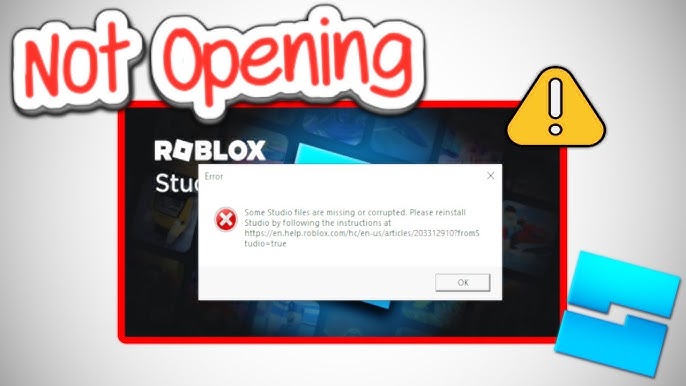
If Roblox fails to open or load correctly, it can be annoying, especially when you’re ready to play. Here’s how to troubleshoot the problem:
/wp:paragraph
wp:list {“ordered”:true}
- wp:list-item
- Reboot Your Device
/wp:list-item
/wp:list
wp:paragraph
A quick reboot can often resolve software glitches that prevent Roblox from starting. Restart your PC, console, or mobile device, and try relaunching Roblox.
/wp:paragraph
wp:list {“ordered”:true,”start”:2}
- wp:list-item
- Temporarily Turn Off Antivirus and Firewall
/wp:list-item
/wp:list
wp:paragraph
Sometimes, security software or firewalls may interfere with Roblox’s ability to launch. Disable them briefly to check if they are the cause.
/wp:paragraph
wp:paragraph
For Windows: Turn off the antivirus or firewall temporarily through your security settings.
/wp:paragraph
wp:paragraph
For Mac: Disable the firewall settings through System Preferences.
/wp:paragraph
wp:list {“ordered”:true,”start”:3}
- wp:list-item
- Run Roblox as Administrator (for PC)
/wp:list-item
/wp:list
wp:paragraph
If you’re using a PC, running Roblox with administrative rights can resolve permission issues that prevent the game from running.
/wp:paragraph
wp:paragraph
Solution: Right-click the Roblox shortcut and select “Run as Administrator.”
/wp:paragraph
wp:list {“ordered”:true,”start”:4}
- wp:list-item
- Verify Roblox’s System Requirements
/wp:list-item
/wp:list
wp:paragraph
Ensure your device meets the minimum system specifications for Roblox to run smoothly. Visit the Roblox website for the most up-to-date hardware and software requirements.
/wp:paragraph
wp:image {“id”:25362,”width”:”640px”,”height”:”auto”,”sizeSlug”:”full”,”linkDestination”:”none”,”align”:”center”}

/wp:image
wp:heading
Part 3: Resolving Issues with Roblox Gift Cards
/wp:heading
wp:paragraph
Players occasionally face challenges when using Roblox gift cards, preventing them from acquiring their Robux.
/wp:paragraph
wp:heading {“level”:3}
Frequent Problems with Gift Cards:
/wp:heading
wp:list
- wp:list-item
- Invalid Code: Make sure the code entered is correct and still valid.
/wp:list-item
/wp:list
wp:paragraph
/wp:paragraph
wp:list
- wp:list-item
- Card Already Used: Check if you applied the card.
/wp:list-item
/wp:list
wp:paragraph
/wp:paragraph
wp:list
- wp:list-item
- Location-Based Restrictions: Some gift cards may be limited to specific areas and won’t work in other regions.
/wp:list-item
/wp:list
wp:paragraph
Steps to Fix It:
/wp:paragraph
wp:list
- wp:list-item
- Recheck the Code: Ensure the code is entered correctly, with no extra characters or mistakes.
/wp:list-item
/wp:list
wp:paragraph
/wp:paragraph
wp:list
- wp:list-item
- Ensure Account Validity: Confirm that your Roblox account is active and not restricted, as this could affect the ability to redeem Robux.
/wp:list-item
/wp:list
wp:paragraph
/wp:paragraph
wp:list
- wp:list-item
- Reach Out to Support: Contact Roblox customer service for assistance if you haven’t used the card yet.
/wp:list-item
/wp:list
wp:heading
Part 4: Why Roblox Won’t Work in Some Games
/wp:heading
wp:image {“id”:25365,”width”:”606px”,”height”:”auto”,”sizeSlug”:”full”,”linkDestination”:”none”,”align”:”center”}

/wp:image
wp:paragraph
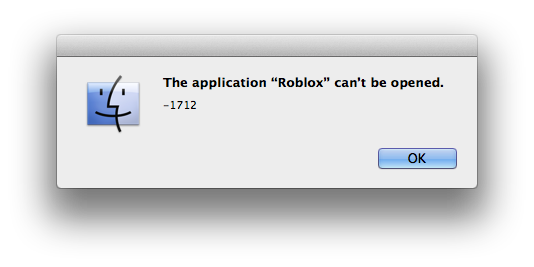
If Roblox works but you encounter issues in specific games, the problem could be with the game itself or how your account interacts.
/wp:paragraph
wp:heading {“level”:3}
Possible Game-Related Issues:
/wp:heading
wp:list
- wp:list-item
- Server Outages: The game’s server might be offline, preventing it from loading.
/wp:list-item
/wp:list
wp:paragraph
/wp:paragraph
wp:list
- wp:list-item
- Technical Glitches: Certain games may experience bugs that stop them from running correctly.
/wp:list-item
/wp:list
wp:paragraph
/wp:paragraph
wp:list
- wp:list-item
- Account Restrictions: Some games require specific account settings, like being friends with the creator.
/wp:list-item
/wp:list
wp:paragraph
How to Fix It:
/wp:paragraph
wp:list
- wp:list-item
- Check the Server Status: Go to the game’s official page for server issues or maintenance updates.
/wp:list-item
/wp:list
wp:paragraph
/wp:paragraph
wp:list
- wp:list-item
- Reach Out to the Developer: Contact the game developer for support if you experience bugs or technical issues.
/wp:list-item
/wp:list
wp:paragraph
/wp:paragraph
wp:list
- wp:list-item
- Review Your Account Settings: Ensure your account has the necessary permissions to access and play the game.
/wp:list-item
/wp:list

