

As PlayStation 5 owners explore their gaming sessions, encountering unexpected errors can be frustrating.
One such issue that has been causing headaches for many users is the PS5 E2-00000000 error.
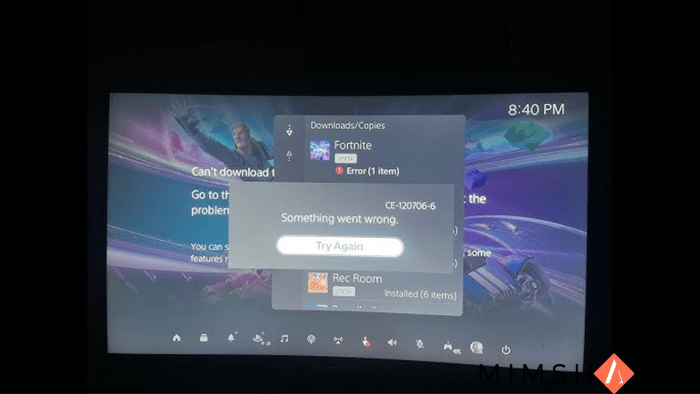
This pesky notification typically appears when trying to download game updates, accompanied by an unhelpful “Something went wrong” message.
Fear not, fellow gamers! This article will walk you through some straightforward solutions to get you back to your gaming adventures.
Understanding the E2-00000000 Error
The E2-00000000 error seems to be a system-wide issue, affecting various games including popular titles like Cyberpunk 2077, Call of Duty: Black Ops Cold War, and Assassin’s Creed Valhalla.
Its occurrence across multiple games suggests that the problem lies with the PS5 hardware rather than specific game updates.
How To Fix PS5 E2-00000000 Error?
If you’re encountering this error while trying to download a game update, here’s a simple method that has proven effective for many users:
- Push the PS button on your DualSense controller
- Navigate to the “Downloads” tab
- Select the problematic update
- Choose the “Resume” option
- Immediately select the update again and choose “Pause”
- Reboot your PS5 console
- Repeat steps 1-3
This process often resolves the issue, allowing the update to proceed normally.
Fixing E2-00000000 Error with Physical Game Discs
The error frequently occurs when inserting a physical game disc, especially when the system attempts to install an update while copying data from the disc.
If the above method doesn’t work in this scenario, try the following steps:
- From the PS5 home screen, highlight the problematic game
- Press the Options button and select “Delete”
- Find the Settings menu. Look for a gear icon at the top right.
- Go to Network > Settings > Connect to the Internet and disable the connection
- Insert the game disc and select “Copy”
- Wait for the disc to fully install
- Re-enable your internet connection through the Settings menu
- Return to the home screen and highlight the game
- Press Options and select “Check for Update”
This method separates the disc installation from the update process, which often resolves the E2-00000000 error.
Keeping Your PS5 Healthy
To help avoid errors like E2-00000000, consider these tips:
- Keep your console updated: Regularly check for system software updates
- Maintain a stable internet connection: A strong, consistent connection helps prevent download issues
- Clean your console: Ensure proper ventilation and regularly dust your PS5 to maintain optimal performance
- Handle discs with care: Keep your game discs clean and scratch-free
Wrapping Up
While the PS5 E2-00000000 error can be annoying, these solutions should help you overcome the issue quickly.
Remember, if problems persist, don’t hesitate to reach out to PlayStation Support for further assistance.
Happy gaming, and may your adventures be error-free!
